
How to fix when Lightroom fills up your laptop drive
Many photographers use laptop computers to store their images in Lightroom. Laptop computers often have small hard drives, like 512GB or even 256 GB. Large image files, such as RAW files, can quickly fill up your drive and cause issues like “your disk is almost full” or “your system has run out of application memory.” Often, the errors caused by a nearly full disk are unexpected and cryptic, making them difficult to diagnose.
Even if you store your image files on an external drive, Lightroom creates preview files. When you have an extensive catalog of images, those preview files can fill your drive and cause system problems.
If your laptop drive is small, here are the steps to prevent Lightroom from filling it up.
Store original image files on an external drive
Modern cameras can create huge files, especially if you store them in RAW format. It is not uncommon for each RAW file to be 30–70MB, which could fill a small drive after just 5,000 images. If you are a wildlife or action photographer, that’s not a lot of photos.
If you take many photos and intend to store them on your laptop, you’ll need to use an external drive with a lot of space. Connect your external drive to your computer, and when importing to Lightroom Classic, ensure the Destination is set to your external drive, not the internal drive.
Lightroom Classic preview files
When viewing images in Lightroom Classic, you view previews generated from the original image files. Lightroom Classic creates preview files for various purposes, like reviewing or zooming in on images. The largest and highest-quality preview files are the 1:1 previews, which allow you to zoom in to 100% on a photo. These 1:1 Previews take up a significant amount of disk space. Read more about all of the types of previews in Lightroom Classic and how they affect Lightroom performance.
Lightroom’s previews live on the drive where your Lightroom Classic catalog file is. For most users, this is on their laptop system drive, not the external drive where original images are stored.
Check your disk space
As a first step, check to see if your laptop disk is nearly full. On Windows, you can find this under Settings > System > Storage. It is also visible under File Explorer > This PC. On a Mac, choose Apple menu > System Settings, then click General in the sidebar. Click Storage on the right, then click All Volumes.
For the system to function smoothly, you should generally have 10% free space or more on your laptop’s system drive.


Check how much space is taken by Lightroom previews
To check how much space Lightroom previews occupy, go to Catalog Settings in the Lightroom Classic menus. On Windows, this is Edit > Catalog Settings. On a Mac, go to Lightroom Classic > Catalog Settings from the menu bar.
Once in Catalog Settings, the general tab will show you your Lightroom catalog file’s location, name, and size. The File Handling tab will show the total size of your Preview Cache. For example, if you have a 512GB drive and your Preview Cache is 350 GB, Lightroom previews occupy 70% of your drive space.

Change 1:1 Previews settings
Check the File Handling settings for your Lightroom catalog if your computer has limited disk space.
It is generally best to leave Standard Preview Size set to Auto, where Lightroom Classic will generate 1:1 previews sized for the resolution of your computer monitor.
The default for Preview Quality is Medium. Changing it to Low reduces the size of 1:1 previews with a minor quality reduction. Remember, this setting does not impact the files you export from Lightroom Classic, only the previews you see on the screen.
You have two options to help you manage the disk space previews used on your computer. The first option is to set a time limit to Automatically Discard 1:1 Previews. When set to Never, 1:1 previews are not discarded and continue to occupy more and more disk space. You can discard 1:1 previews After One Day, After One Week, and After 30 Days. Change the setting to After 30 Days, which will discard 1:1 previews you have not recently used and should free up your limited disk space. You can try the One Week or One Day settings if 30 Days isn’t aggressive enough.

A second option is to Limit Preview Cache Size. When you select this option, you specify a limit to how much disk space your previews can use. Lightroom Classic will automatically purge previews to keep you within those limits, and previews that are 30 days or newer are never deleted.

When 1:1 Previews are discarded, you will have a slight delay in the Lightroom Classic Library module when you zoom in on images, as it will rebuild the 1:1 Previews each time it needs them.
Move your catalog to an external drive
Since Lightroom Classic previews are stored alongside your catalog file, you can move your catalog to an external disk with more space.
First, locate your Lightroom catalog file to move to your external drive. From the General tab of Catalog Settings, press the Show button to open the location of your catalog file and all supporting files in either Windows File Explorer or Mac Finder.

Now, close Lightroom Classic. Select all files and folders in the folder with your catalog and move them to a folder on your external hard drive. The files/folders will all have lrcat or lrdata in their names. Moving these files could take time if you have a lot of previews.
Double-click on your catalog file from your new location to open Lightroom Classic. It will have a name like your-lightroom.lrcat or similar. Opening the catalog from this folder will tell Lightroom Classic about the new location of your catalog file.
Since you have moved your Lightroom catalog to an external drive, ensure you have a backup strategy for your catalog file in case you lose or damage that drive.
Manually discard 1:1 previews
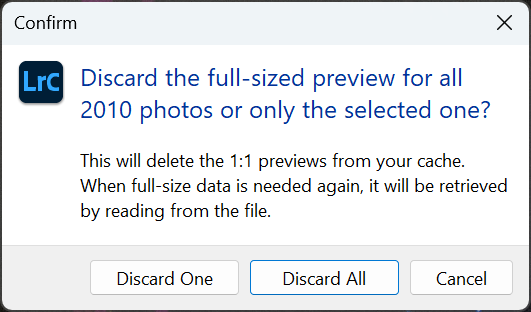
You can discard 1:1 previews manually from the Lightroom Classic Library Module. First, select a folder or multiple folders from the Folders panel on the left. Then, from the Lightroom Classic menu, choose Library > Previews > Discard 1:1 Previews. On the confirmation screen, select Discard All. All 1:1 Previews for those folders will be deleted and regenerated the next time Lightroom needs them.
Upgrade your laptop system drive
Another solution is installing a larger drive on your laptop computer. Depending on the model of your laptop, this is sometimes easy, other times difficult, or impossible. You must also deal with backing up your drive and moving your data to the new drive. Depending on the age of your laptop, you may be better off upgrading to a new computer for more space.