
Understanding previews and improving performance in Lightroom Classic
Adobe’s Lightroom Classic uses several different preview types when viewing and processing images. Most Lightroom users are confused by how and when it creates preview files, but generating previews is essential to improve the application’s speed and responsiveness while culling and editing images.
Why does Lightroom Classic create previews?
The image editing process in Lightroom Classic is non-destructive. When you edit an image, like brightening or sharpening it, Lightroom does not change the original file. Instead, it stores a list of instructions for your edits and creates a preview showing the results of those edits on your screen. Lightroom only generates new files from your edits when you export your final image.
Also, many original images are enormous files with a much higher resolution than your computer screen. For example, when an image’s resolution is 8256×5504 pixels, but your computer screen is only 2560×1440 pixels, displaying a smaller-size preview at your screen resolution requires less computing power and is faster than trying to render and downsize a huge file. Efficiency is even more critical when showing small sizes, like the thumbnails displayed in the Grid and Filmstrip views.
What types of preview files does Lightroom Classic create?
Lightroom Classic generates the following preview types.
Minimal: These previews are small, low-resolution JPEG previews embedded in the photos that the camera generates. They are the fastest type of preview to create. The Filmstrip and Grid view of the Library module temporarily uses minimal previews until Lightroom renders standard-size previews for those thumbnails.
Embedded & Sidecar: These previews are larger and also camera-generated, taking a little longer to create than minimal previews.
Standard: Standard previews are created by Lightroom Classic using the Camera Raw processing engine. They may appear differently than minimal or embedded previews because Develop module adjustments are applied to the profile, exposure, contrast, or color. You can specify the size of standard previews under Catalog Settings based on your display size. Standard previews are used in the Filmstrip and Grid view and the Slideshow, Print, and Web modules.
1:1: These previews are the largest that Lightroom Classic generates. Like standard previews, they are processed using the Camera Raw engine, showing 100% of an image’s pixels. These large previews require considerable computing power and time to create. When you zoom to 100% or higher in the Library module, Lightroom Classic shows 1:1 previews.
Lightroom requires a standard or 1:1 preview when working with photos, depending on the task. When you generate a 1:1 preview, standard and minimal previews are created simultaneously if they do not already exist.
Smart Previews: These previews are a special type of preview file, allowing you to continue working on images when the drive containing the original image is disconnected. For example, you can still edit the files if your original image is stored on an external SSD drive that isn’t always connected. Any edits you make while the drive is disconnected are automatically synced when you reconnect your drive. If your drive storage is always connected to your computer, you don’t need to generate Smart Previews.
When does Lightroom Classic generate previews?
When using Lightroom Classic, photographers must decide when they want previews created. This decision impacts the application’s speed and responsiveness but comes with a tradeoff. All preview types can be made when images are imported, which slows the import process. Conversely, if you allow Lightroom Classic to generate the previews it needs as you work with images, there can be a noticeable lag each time you access an image for the first time, since it has to generate the previews it needs.
Generate previews during import
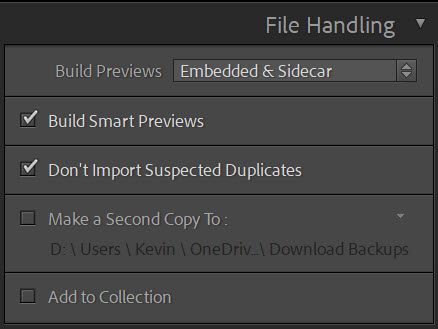
When importing images into Lightroom Classic, you can choose which type of previews will be built during the import process. Under the File Handling section, you can select Minimal, Embedded & Sidecar, Standard, or 1:1. Minimal makes the import process as fast as possible. Generating 1:1 previews takes a considerable amount of time and computing power. We usually select Embedded & Sidecar, which offers a relatively fast import process and starts with somewhat usable previews.

A separate checkbox in the File Handling section allows you to build Smart Previews during import. This can be helpful if you regularly disconnect the external storage drive where your images are stored.
Replace embedded previews with standard reviews during idle time
In Lightroom Classic Preferences, under the General tab, there is a checkbox that allows Lightroom Classic to replace embedded previews with standard previews during idle time. We recommend keeping this box checked.

Generate previews in parallel
Another setting in Lightroom Classic Preferences allows Lightroom to attempt to build multiple previews simultaneously during import. Under Preferences > Performance, the checkbox is called Generate previews in parallel.
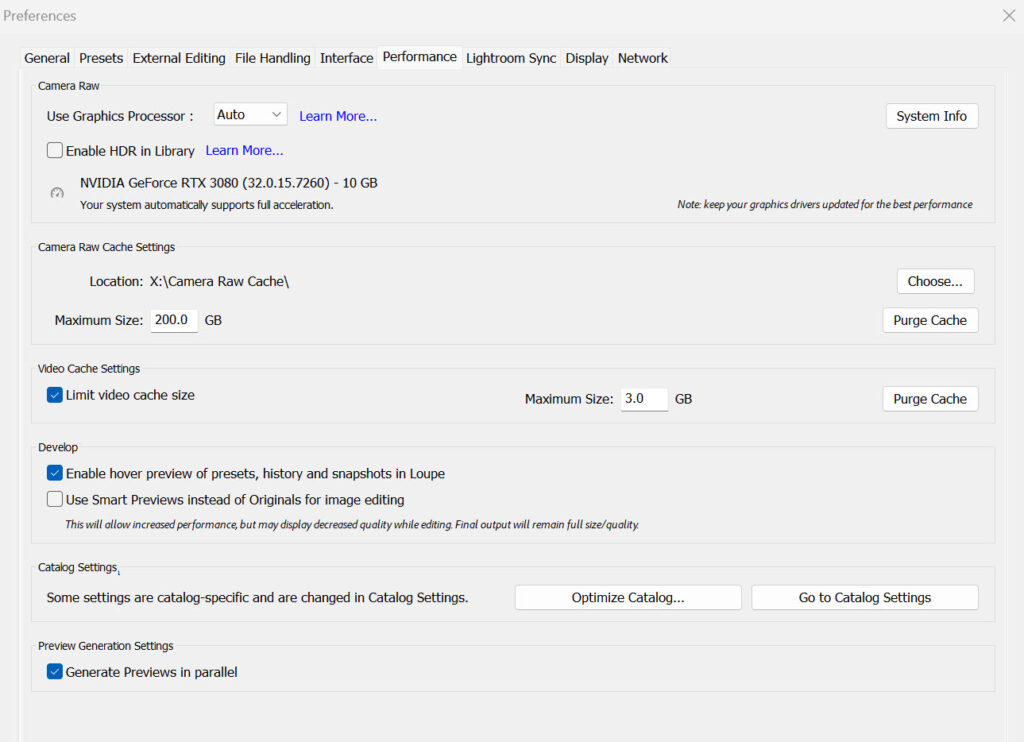
This setting can help speed up the preview generation process but has drawbacks. While previews are being built, Lightroom’s interactive performance slows down. This slowdown is even more noticeable on slower computers, like laptops. If you want to continue to work in Lightroom Classic while previews are being built, we recommend leaving this box unchecked.
Build previews as you work on images
When you view and work on images in Lightroom Classic, if the required previews don’t already exist, the application generates the previews it needs when you access an image. For example, if you import using the Embedded & Sidecar option, you are first shown the embedded preview when you view the image. Lightroom Classic will generate a standard preview when you access that image. If you zoom in to 100% or more, Lightroom will generate a 1:1 preview. When these previews don’t exist, there is a noticeable delay while the previews are built for the first time.
Build and discard previews on demand
You can select a folder of images in Lightroom Classic and instruct it to build Standard, 1:1, or Smart Previews anytime. You can also discard groups of previews.
First, select the folder where you want to build or discard previews. Then, from the Library menu, choose Library>Previews. Choose the type of previews you want to build or discard, then on the next screen, select Build All.
What about previews in the Develop Module?
To confuse things, the Develop module in Lightroom Classic handles previews entirely differently than the Library module. Lightroom Classic needs access to the original image file to make edits in the Develop module. When you access an image in the Develop module, the original image file is read and rendered by the Camera Raw engine.
The most recently edited files are stored in the Camera Raw cache, a folder different from where other previews are stored. If you have extra disk space, you can increase the size of the Camera Raw cache in Preferences > Performance.
You can also use Smart Previews to edit files when the original image file is unavailable. Smart Previews are helpful when traveling and not connected to your storage drive at home, but you need to generate them before you disconnect the drive with your original image files.
If you’ve generated Smart Previews, check the option under Preferences > Performance to Use Smart Previews instead of Originals for image editing. This option increases performance in Lightroom but may display lower-quality previews. Smart Previews do not affect the quality of files created during export.
Manage disk space taken up by Lightroom Classic previews
While Lightroom Classic previews are much smaller than your original image files, they can still occupy large amounts of disk space, particularly when you have an extensive catalog of images. For example, our current catalog contains 306,000 images that take up 10.4TB of disk space. With 1:1 previews built for all those images, the preview cache is a whopping 1TB.
The resolution of your display also determines the size of your preview cache. Previews built for a 2K display will take up less space than previews built for a 4K display. The Standard Preview Size setting in your Catalog Settings determines this. We recommend leaving this set to Auto, which will build previews based on the resolution of your display.
Lightroom Classic’s preview cache can fill up the disk on computers with limited disk space, like laptops, even when storing your image files on an external SSD drive. Lightroom’s previews are stored on the drive where your catalog lives, not where the image files are. Often, this is your system drive. Fortunately, Lightroom Classic has two settings to help you manage the size of your preview cache.
The first option is to set a time limit to Automatically Discard 1:1 Previews. When set to Never, 1:1 previews are not discarded and continue to occupy more and more disk space. You can discard 1:1 previews After One Day, After One Week, and After 30 Days. Change the setting to After 30 Days, which will discard 1:1 previews you have not recently used and should free up your limited disk space. You can try the One Week or One Day settings if 30 Days isn’t aggressive enough.

A second option is to Limit Preview Cache Size. When you select this option, you specify a limit to how much disk space your previews can use. Lightroom Classic will automatically purge previews to keep you within those limits, and previews that are 30 days or newer are never deleted.

Recommendations for preview generation
Based on your workflow, you must decide when you want Lightroom Classic to generate previews. Lightroom Classic performs best when all previews are already built, but building all previews during image import considerably slows down the import process. How quickly do you want to jump in and start working with your photos? Or can you wait for a lengthy import process while all previews are created?
If your image culling process involves zooming in to 100% to check sharpness, you will need 1:1 previews. Checking sharpness is often required for bird, wildlife, or action photography. The embedded or standard previews may be sufficient if you can cull images without zooming in.
Our generally recommended workflow is to choose Embedded & Sidecar during the import process to keep importing relatively quickly while still having useful previews available to glance at photos. Each time you access an image and need a standard or 1:1 preview, Lightroom Classic will generate the preview sizes you need, with a slight delay.
If you zoom in frequently to check focus and sharpness or if the preview generation delay is annoying, you can manually generate 1:1 previews before you begin your culling process. For more than a couple hundred photos, you can start this process before you go to bed and let the computer finish generating previews while you sleep. Select the folder images you want to create previews, choose Library > Previews > Build 1:1 Previews, then click Build All. You’ll see preview generation progress in the application’s top left corner.